A Security Key, also known as a YubiKey, is a physical device that plugs into your computer to verify your identity when you log in. A security key is compact and can be easily carried, making it ideal for travel. It's a ready-to-use plug-and-play device. Security Keys from Yubico and Feitian are recommended and supported. Follow the steps below to enroll in Two-Step Verification using a Security Key:
Security Key (YubiKey) Enrollment Instructions
- Visit the Duo Device Management Portal and log in using your PennKey username and password.
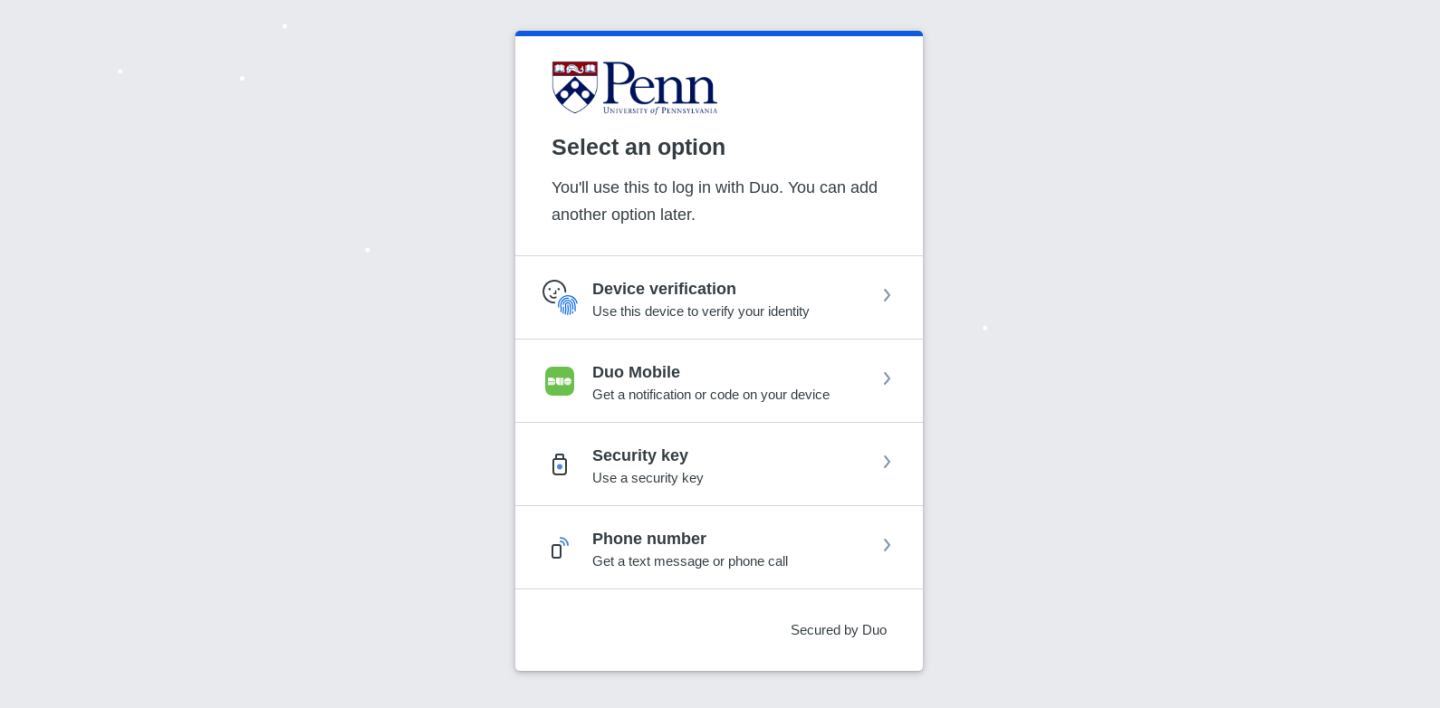
- First-time enrollment: Click Next until you reach the screen titled Select an option.
- Adding an additional verification method: Click Add a device.
From the Select an option screen, select Security Key.
- Click Continue.
You will see a pop-up asking you to insert your Security Key and to touch the small metal contact on the key to activate it. If you have previously set up a PIN for your Security Key, you may also be asked to input your PIN during this step.
- Note that the pop-up screen will vary depending on the browser you are using (see below for examples).
You may receive additional pop-ups similar to the ones below asking where to save your passkey or if you want to allow Duo to access information about your Security Key. Proceed as applicable and click through these prompts.
After you activate the Security Key, you will see the Added security key screen. Click Continue.
When you return to the Duo Device Management Portal, you should now see Security Key among your registered devices. Your Security Key will now be available as a login option for Duo when logging into PennKey-protected applications.
- If you also need to set up a PIN for your Security Key, refer to the PIN Setup Instructions below.
Security Key (YubiKey) PIN Setup Instructions
You can choose to add a PIN to your Security Key (YubiKey) for an extra layer of security, or you may be required to use a PIN if you are a user of highly sensitive applications or data.
There are several methods to set your PIN. Select the method below that best fits your situation and follow the listed instructions.
Yubico Authenticator App
Note: You must have administrator access to your computer or device to download the Authenticator app. If you do not have this access, use one of the other methods to create your PIN.
- Go to the Yubico Authenticator app download page and click the download link for your system. Follow the on-screen instructions as you would for any app download.
- After download, launch the Yubico Authenticator app.
- Plug your YubiKey into your device. The app will detect your YubiKey.
In the Yubico app, click on the left menu icon (hamburger) in the upper left corner of the app and select Passkeys.
Under Manage, click Set PIN.
In the Set PIN window, enter your new PIN, then enter the new PIN again to confirm and click Save.
- The PIN can contain letters and/or numbers and must be between 4 and 63 characters in length. Penn recommends a 6-character PIN for your Security Key.
- Your PIN will now be available to use with your Security Key as a login option for Duo when logging into PennKey-protected applications.
Security Key Management (Windows)
- Plug your Security Key into your device.
On your Windows device, go to Settings -> Accounts -> Sign-in Options. Select Security key, then select Manage. You may be prompted to touch the security key connected to your device.
Under Security Key PIN, click Add.
- In the Set up a security key PIN window, enter your new PIN, then enter the new PIN again to confirm and click OK.
- The PIN can contain letters and/or numbers and must be between 4 and 63 characters in length. Penn recommends a 6-character PIN for your Security Key.
- Your PIN will now be available to use with your Security Key as a login option for Duo when logging into PennKey-protected applications.
Chrome Web Browser (Non-Windows)
Go to Chrome’s Settings -> Privacy and Security. Select Security.
Scroll down, then select Manage security keys.
Select Create a PIN.
- At the prompt, insert and touch your Security Key.
In the pop-up, enter your new PIN, then enter the new PIN again to confirm. Click Save, then OK.
- The PIN can contain letters and/or numbers and must be between 4 and 63 characters in length. Penn recommends a 6-character PIN for your Security Key.
- Your PIN will now be available to use with your Security Key as a login option for Duo when logging into PennKey-protected applications.
If you need to change your YubiKey PIN, please refer to ISC's documentation on How to Change a Security Key PIN.